
PlayMoreSounds
Wiele dźwięków na zdarzenie | Przerwa przed odtwarzaniem | Dźwięki na każde słowo w czacie
- Dostępne pliki
- 36
- Obsługiwane wersje
- 9
- Najnowszy plik
- 29.10.2018
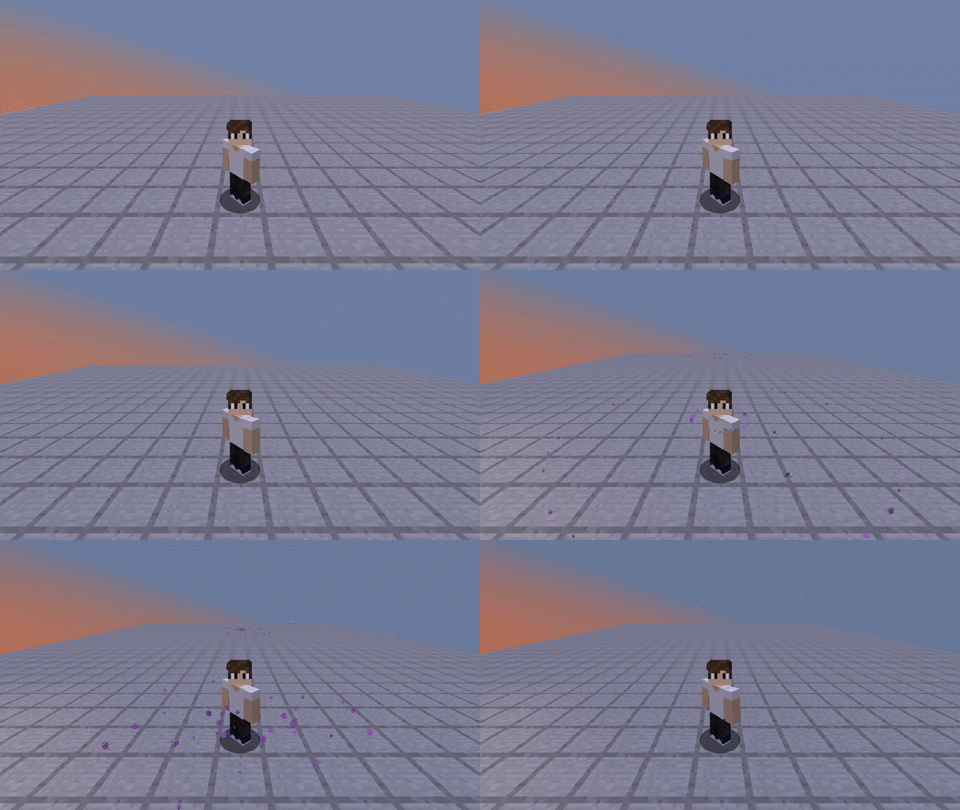
PlayMoreSounds to bardzo kompletny plugin, w którym możesz przypisywać dźwięki do różnych okazji. Głównym celem pluginu jest odtwarzanie dźwięku, gdy gracz wywoła zdarzenie (akcję); najprzydatniejsze funkcje oprócz odtwarzania dźwięków w zdarzeniu gracza to: odtwarzanie dźwięków, gdy gracz wywoła konkretne polecenie; odtwarzanie dźwięków w pętli, gdy gracz znajduje się w regionie dźwiękowym, który możesz stworzyć za pomocą narzędzia różdżki; odtwarzanie dźwięku, gdy gracz powie konkretne słowo w czacie; odtwarzanie wielu dźwięków zamiast jednego; odtwarzanie noteblocków zamiast samych dźwięków; odczekanie interwału zamiast natychmiastowego odtwarzania dźwięku, itp. Sprawdź najfajniejsze funkcje PlayMoreSounds na liście poniżej.
Uwaga: Kiedy w konfiguracji config.yml włączony jest parametr "CheckForUpdates", plugin spróbuje nawiązać połączenie z https://api.curseforge.com/ na starcie serwera, aby sprawdzić dostępność aktualizacji. Jeśli nie chcesz, aby PlayMoreSounds łączył się z zewnętrznymi stronami, przestaw parametr "CheckForUpdates" znajdujący się w config.yml z 'true' na 'false'.
→Funkcje←
Zalety korzystania z PlayMoreSounds:
- Dodatki: PlayMoreSounds obsługuje niestandardową zawartość (Dodatki), więc możesz pobierać dodatki i zapewnić kompatybilność PlayMoreSounds z każdym pluginem na Twoim serwerze. Obecnie jedynymi dostępnymi dodatkami są w pliku JAR, lecz w przyszłości zamierzam stworzyć forum, aby społeczność mogła dzielić się własnymi dodatkami;
- Przypisz dźwięki do konkretnych poleceń;
- Przypisz dźwięki do konkretnych słów w czacie; (Na razie nie w samej wtyczce)
- Zgodność: Kompatybilny z wersjami większymi niż MC1.7.9;
- Utwórz regiony dźwięków bez konieczności używania innych wtyczek do wybrania i zapisania tych regionów;
-
Zdefiniuj któregracze usłyszą dźwięki:
- Wszyscy gracze online na serwerze;
- Gracze w określonym zakresie bloków od miejsca, w którym zdarzenie zostało wywołane (Funkcja promienia);
- Gracz, który wykonał zdarzenie.
-
Nie wpływa na wydajność serwera: Jeśli nie używasz zdarzenia, PlayMoreSounds automatycznie wyrejestruje zdarzenie, które zużywało pamięć serwera w tle;
-
Odtwarzaj wejścia, wyjścia, dźwięki w pętli gdy jesteś wewnątrz konkretnych biomów lub regionów; (Jeszcze nie wtyczce)
-
Odtwarzaj więcej niż jeden dźwięk dla każdego zdarzenia;
-
Odtwarzaj noteblock noty w zamian za tylko dźwięki Bukkit;
-
Ustaw an interwał aby odczekać zamiast odtwarzać dźwięk natychmiast po wywołaniu zdarzenia;
-
Określ wysokość dźwięku i głośność każdego dźwięku;
-
Określ które światy dźwięki nie będą słyszalne;
- Testuj(Play) lub listuj dźwięki dostępne w Minecraft za pomocą poleceń;
- Włącz/wyłącz dźwięki za pomocą poleceń;
Sprawdź dźwięki dostępne w Twojej wersji Minecraft w linkach poniżej (lub po prostu użyj polecenia /pms list):
→Zgodność←
Które zdarzenia uruchamiają dźwięki?
- Achievement
- Advancement Done
- Arrow Hit
- BedEnter
- BedLeave
- Change Afk Status - Depends on Essentials away
- Change EXP level
- Change Hotbar
- Chat - Supports Legendchat and UltimateChat
- Command
- Death
- Fly
- First Join
- Furnace Extract
- Gamemode Change
- Hand Hit
- Inventory Click
- Item Drop
- JobsJoin - Depends on JobsReborn
- JobsLeave - Depends on JobsReborn
- Join
- Leave
- Region Enter - Supports RedProtect and WorldGuard
- Region Leave- Supports RedProtect and WorldGuard
- Stop Flying
- Sword Hit
- Teleport - Supports VanishNoPacket and EssentialsVanish
If you do not want the sound of the event to play, change it to NONE
→Polecenia←
Kliknij tutaj aby zobaczyć pełną i szczegółową listę poleceń.
/playmoresounds - Pokazuje opis wtyczki.
/playmoresounds confirm - Potwierdza coś.
/playmoresounds edit - Edytuje coś w konfiguracji.
/playmoresounds help - Wyświetla pomoc do poleceń.
/playmoresounds list - Wypisuje wszystkie dostępne dźwięki Bukkit lub instrumenty noteblock.
/playmoresounds play - Odtwarza dźwięk Bukkit lub dźwięk z zdarzenia z pliku sounds.yml.
/playmoresounds region - Główne polecenie regionów.
/playmoresounds reload - Przeładowuje wszystkie konfiguracje.
/playmoresounds restore - Przywraca wszystkie konfiguracje.
/playmoresounds sounds - Sprawdza, czy dźwięki są włączone lub wyłączone.
/playmoresounds toggle - Przełącz dźwięki na włączone/wyłączone.
/playmoresounds update - Sprawdza aktualizacje.
Możesz zmienić dźwięki, wysokość dźwięku i głośność odtwarzane dla każdego zdarzenia.
# Checks for updates.
CheckForUpdates: true

# Auto-Update the plugin when you check for updates on command "/playmoresounds update".
CommandAutoUpdate: true

# If you have an outdated configuration, the plugin will ask you to restore it.
# (If is disabled, the plugin automatically restore your outdated configs.)
ConfirmOutdatedFileRestoration: true

# Shows debug messages to console.
# (If you set as "developer", this will log and spam your console with all debugging tests.)
DebugOutput: false

# Change the sounds depending on the date that the plugin runs.
EnableEasterEggs: true

# If a player has disabled his sounds and relogged, the sounds will be enabled.
EnableSoundsAfterRelog: false

# Extracts the language files into the plugin folder.
ExtractLanguageFiles: true

# Shows the help page based on player's permissions.
HelpBasedOnPermissions: true

# This will hide radius sounds for players who have the following conditions:
HideRadiusSoundsTo:
  InvisibilityEffect:
    Enabled: true
    #Permission: playmoresounds.sounds.radius.hide.invisible
    OnlyWithPermission: true
  Gamemode:
    Adventure: false
    Creative: false
    Spectator: true
    Survival: false
  # Hide the sound to players that can not see the sound maker. (Most used code for vanish plugins.)
  IfCanNotSee: true

# Settings of the '/pms list' command.
ListCommand:
  # The amount of sounds/instruments that should appear per page.
  Amount: 12
  # The color of each sound/instrument that is shown in the list.
  Color: '&6'
  # The secondary color of each sound/instrument that is shown in the list.
  Color2: '&e'
  # The separator that will be between each sound/instrument that is in the list.
  Separator: '&7, '

# The language of the plugin [en, br, es].
Localization: en

# Particles that will spawn when a player makes an event.
Particles:
  Teleport:
    Enabled: true
    HideOn:
      Gamemode:
        Adventure: false
        Creative: false
        Spectator: true
        Survival: false
      InvisibilityEffect:
        Enabled: true
        #Permission: playmoresounds.particles.hide.invisible
        OnlyWithPermission: true
      # Hide the particles to players that can not see the particle maker. (Most used code for vanish plugins.)
      IfCanNotSee: true

# Enable the configuration "commands.yml" to play a different sound to each command.
PerCommandSounds:
  Enabled: true

# Enable the configuration "gamemodes.yml" to play a different sound to each gamemode.
PerGamemodeSounds:
  Enabled: true

# The volume and pitch that will be set if the player don't specify when
# the command "/pms play" is sent.
PlayCommandDefaultPitch: 1
PlayCommandDefaultVolume: 10

# The sound that will play when the config is reloaded.
ReloadCommand:
  Sound:
  - 'Sound=BLOCK_NOTE_PLING;Interval=0;Volume=10;Pitch=1'

# The regions that you can create to play a sound when you enter/exit it.
SoundRegions:
  WandTool:
    Glowing: true
    Material: STICK
    Name: '&6&l&nSound Region Selector'

# The sounds that will play when a player change his toggle-sounds status.
ToggleCommand:
  # Time in seconds of how long you should wait to toggle sounds again.
  Cooldown: 35s #h = hour, m = minute, s = seconds.
  ToggleSounds:
    ToggleEnabled:
      Sound:
      - 'Sound=BLOCK_NOTE_PLING;Interval=0;Volume=10;Pitch=2'
    ToggleDisabled:
      Sound:
      - 'Sound=BLOCK_NOTE_BASS;Interval=0;Volume=10;Pitch=1'

# Check for updates every X minutes.
# If you disable "LogToConsole" the plugin will just inform you when an update is available.
UpdateScheduler:
  Enabled: true
  # Time in minutes of how long the plugin will check for updates again.
  Interval: 1h #h = hour, m = minute, s = seconds.
  LogToConsole: false

# Uses hard memory-consuming methods to automatic reload the plugin configuration.
# (/playmoresounds reload not needed).
UseHardMethods: false
# The worlds that will not play any sounds.
# To use it, just remove the "#" hashtags.
#World-BlackList:
#- 'example1'
#- 'example2'

# The version of your configuration. (To restore the old configurations)
ConfigVersion: 2.4.0
Sounds.yml:
You can add a sound to every event, or if you want, a noteblock note.
These sounds are here by default, you can change them reading the following tutorials:

Multiple sounds tutorial:
#  ChangeHotbar: = The event.
#    Cancellable: true = If another plugin has cancelled the event, the sound will not play.
#    Radius: -1 = The radius. (More info below)
#    Sound:
#    - 'Sound=SOUND_HERE;Interval=INTERVAL_HERE;Volume=VOLUME_HERE;Pitch=PITCH_HERE'
#
#  Replace SOUND_HERE to the sound that you want, INTERVAL_HERE to the time (ticks) that the sound
#will wait before playing, VOLUME_HERE to the sound volume, PITCH_HERE to the sound pitch.
#  You cant put multiple lines to play multiple sounds in one event.
#
#  Example:
#    PlayerDeath:
#      Radius 10
#      Sound:
#      - 'Sound=ENTITY_EVOCATION_FANGS_ATTACK;Interval=0;Volume=2;Pitch=1'
#      - 'Sound=ENTITY_ENDERDRAGON_GROWL;Interval=10;Volume=2;Pitch=1'
#      - 'Sound=ENTITY_WITHER_SPAWN;Interval=13;Volume=2;Pitch=1'

Radius tutorial:
#  If you set the 'Radius' configuration, the plugin will play the sounds to the players that are in
#this distance. For example:
#  PlayerDeath:
#    Radius: -1 = Only the event maker will listen to the sound.
#  PlayerChat:
#    Radius: 0 = All players allowed to hear PlayerChat in the server will listen to the sound.
#  PlayerTeleport:
#    Radius: 10 = All players allowed to hear PlayerTeleport in this distance from event maker will
#listen to the sound.

Noteblock notes tutorial:
#  If you want noteblocks, replace SOUND_HERE to Note.INTRUMENT:NOTE
#INSTRUMENT is the noteblock instrument that you want, NOTE is the note of the noteblock.
#  For some reason, in versions greater than 1.8.9, noteblocks notes can only be listen if 'Music' from player 'Sound Settings' is on.
#
#  Example:
#    JoinServer:
#      Radius: 0
#      Sound:
#      - 'Sound=Note.PIANO:12;Interval=0;Volume=0;Pitch=0'
#      - 'Sound=Note.PIANO:24;Interval=10;Volume=0;Pitch=0'
#      - 'Sound=Note.PIANO:24;Interval=20;Volume=0;Pitch=0'
#
# - To see the compatible noteblock instruments use the command "/pms list -instruments".

#When a mob gets hitten by an arrow.
ArrowHit:
  Cancellable: true
  Radius: -1
  Sound:
  - 'Sound=ENTITY_EXPERIENCE_ORB_PICKUP;Interval=0;Volume=10;Pitch=1'
  - 'Sound=ENTITY_EXPERIENCE_ORB_PICKUP;Interval=1;Volume=10;Pitch=1'

#When a player lies in bed.
BedEnter:
  Cancellable: true
  Radius: 10
  Sound:
  - 'Sound=ENTITY_VILLAGER_AMBIENT;Interval=0;Volume=1;Pitch=0.6'

#When a player gets out of bed.
BedLeave:
  Radius: -1
  Sound: NONE

#When a player change his item in hand.
ChangeHotbar:
  Cancellable: false
  Radius: -1
  Sound:
  - 'Sound=BLOCK_NOTE_HAT;Interval=0;Volume=10;Pitch=2'

#When a player reaches a new level of experience.
ChangeLevel:
  Radius: -1
  Sound:
  - 'Sound=ENTITY_PLAYER_LEVELUP;Interval=0;Volume=0.6;Pitch=2'

#when a player extracts something from the workbench.
CraftingExtract:
  Radius: -1
  Sound:
  - 'Sound=ENTITY_PLAYER_LEVELUP;Interval=0;Volume=10;Pitch=1'

#When a player joins to the server for the first time.
FirstJoin:
  Radius: 0
  Sound:
  - 'Sound=BLOCK_NOTE_PLING;Interval=0;Volume=10;Pitch=1'
  - 'Sound=BLOCK_NOTE_PLING;Interval=1;Volume=10;Pitch=1'
  - 'Sound=BLOCK_NOTE_PLING;Interval=6;Volume=10;Pitch=2'

#When a player extracts something from the furnace.
FurnaceExtract:
  Radius: 15
  Sound:
  - 'Sound=ENTITY_GENERIC_EXTINGUISH_FIRE;Interval=0;Volume=1;Pitch=1'
  - 'Sound=ENTITY_GENERIC_EXTINGUISH_FIRE;Interval=1;Volume=1;Pitch=2'

#When a player changes his game mode.
GamemodeChange:
  Cancellable: false
  Radius: -1
  Sound:
  - 'Sound=BLOCK_ANVIL_PLACE;Interval=0;Volume=10;Pitch=1'

#When a player hits a mob with his hand.
HandHit:
  Cancellable: true
  Radius: 12
  Sound:
  - 'Sound=ENTITY_PLAYER_HURT;Interval=0;Volume=1;Pitch=2'

#When a player clicks on his inventory.
InventoryClick:
  Cancellable: false
  Radius: -1
  Sound:
  - 'Sound=UI_BUTTON_CLICK;Interval=0;Volume=0.4;Pitch=1'

#When a player joins the server
JoinServer:
  Radius: 0
  Sound:
  - 'Sound=BLOCK_NOTE_PLING;Interval=0;Volume=10;Pitch=1'

#When a player quits the server.
LeaveServer:
  Radius: 0
  Sound:
  - 'Sound=BLOCK_NOTE_BASS;Interval=0;Volume=10;Pitch=1'
  - 'Sound=BLOCK_NOTE_BASS;Interval=0;Volume=10;Pitch=1'
  - 'Sound=BLOCK_NOTE_BASS;Interval=0;Volume=10;Pitch=1'

#When a player gets a new achievement.
PlayerAchievement:
  Cancellable: true
  Radius: -1
  Sound:
  - 'Sound=ENTITY_PLAYER_LEVELUP;Interval=0;Volume=10;Pitch=1'

#When a player completes an advancement.
PlayerAdvancementDone:
  Radius: -1
  Sound:
  - 'Sound=ENTITY_PLAYER_LEVELUP;Interval=0;Volume=10;Pitch=1'

#When a player says something on the chat.
PlayerChat:
  Cancellable: true
  Radius: 0
  Sound:
  - 'Sound=ENTITY_ITEM_PICKUP;Interval=0;Volume=0.5;Pitch=1'

#When a player sends a command.
PlayerCommand:
  Cancellable: true
  Radius: -1
  Sound:
  - 'Sound=ENTITY_ITEM_PICKUP;Interval=0;Volume=10;Pitch=1'

#When a player dies.
PlayerDeath:
  Radius: -1
  Sound:
  - 'Sound=ENTITY_WITHER_SPAWN;Interval=0;Volume=10;Pitch=1'

#When a player drops an item.
PlayerDrop:
  Cancellable: true
  Radius: 12
  Sound:
  - 'Sound=ENTITY_EGG_THROW;Interval=0;Volume=0.5;Pitch=1'

#When a player starts flying.
PlayerFlight:
  Cancellable: true
  Radius: 8
  Sound:
  - 'Sound=BLOCK_PISTON_EXTEND;Interval=0;Volume=0.6;Pitch=1'

#When a player stops flying.
PlayerFlightStop:
  Cancellable: true
  Radius: 8
  Sound:
  - 'Sound=BLOCK_PISTON_CONTRACT;Interval=0;Volume=0.6;Pitch=1'

#When a player teleports to another place.
PlayerTeleport:
  Cancellable: true
  Radius: 16
  Sound:
  - 'Sound=ENTITY_ENDERMEN_TELEPORT;Interval=0;Volume=1;Pitch=1'

#When a player enters on a region.
RegionEnter:
  Cancellable: true
  Radius: -1
  Sound:
  - 'Sound=ENTITY_EXPERIENCE_ORB_PICKUP;Interval=0;Volume=10;Pitch=1'

#When a player leaves a region.
RegionLeave:
  Cancellable: true
  Radius: -1
  Sound:
  - 'Sound=ENTITY_EXPERIENCE_ORB_PICKUP;Interval=0;Volume=10;Pitch=1'

#When a player hits a mob with a sword.
SwordHit:
  Cancellable: true
  Radius: 12
  Sound:
  - 'Sound=ENTITY_PLAYER_HURT;Interval=0;Volume=1;Pitch=1'

#Do not touch this if you do not want your configuration to be restored.
SoundsConfigVersion: 2.4.0
Commands.yml:
Przypisz dźwięki dla konkretnych poleceń.
#You can add commands to this file and set the sound that will play when a player sends this commands to server.
#If you want to play the default sound of PlayerCommand on sounds.yml, just don't add the command to this file.

#Examples:
Regions.yml:
Odtwarzaj różne dźwięki po wejściu/wyjściu w regiony określone w tym pliku.
#You can add name of regions to this file and set a sound to play when you enter/exit the region.
#Sound Regions can be created with /pms region create <name> and this is also compatible with other plugin's regions (WorldGuard, RedProtect).

#Examples:

PlayMoreSounds: = The region plugin.
# When a player enter on this PlayMoreSounds "NotePlingRegion" region, the sound BLOCK_NOTE_PLING with volume 10 and pitch 1 will be played.
# When a player exit this PlayMoreSounds "NotePlingRegion" region, the sound BLOCK_NOTE_PLING with volume 0.5 and pitch 2 will be played.
  NotePlingRegion: = The name of the region.
    Enter: = The event.
      Radius: -1 = Radius of the sound.
      Sound:
      - 'Sound=BLOCK_NOTE_PLING;Interval=0;Volume=10;Pitch=1' = The sound that will play when a player enter on this region.
    Leave: = The event.
      Radius: -1 = Radius of the sound.
      Sound:
      - 'Sound=BLOCK_NOTE_PLING;Interval=0;Volume=10;Pitch=1' = The sound that will play when a player exit this region.
# When a player enter on this PlayMoreSounds "WitherSpawnSound" region, the sound ENTITY_WITHER_SPAWN with volume 10 and pitch 1 will be played.
# When a player exit this PlayMoreSounds "WitherSpawnSound" region, the sound ENTITY_WITHER_DEATH with volume 1 and pitch 0 will be played.
  WitherSpawnSound:
    Enter:
      Radius: -1
      Sound:
      - 'Sound=ENTITY_WITHER_SPAWN;Interval=0;Volume=10;Pitch=1'
    Leave:
      Radius: -1
      Sound:
      - 'Sound=ENTITY_WITHER_DEATH;Interval=0;Volume=10;Pitch=0'

# When a player enter on this WorldGuard "spawn" region, the sound ENTITY_EXPERIENCE_ORB_PICKUP with volume 10 and pitch 1 will be played.
# When a player exit this WorldGuard "spawn" region, the sound BLOCK_NOTE_BASS with volume 10 and pitch 2 will be played.
WorldGuard:
  spawn:
    Enter:
      Radius: -1
      Sound:
      - 'Sound=ENTITY_EXPERIENCE_ORB_PICKUP;Interval=0;Volume=10;Pitch=1'
      Volume: 10
      Pitch: 1
    Leave:
      Radius: -1
      Sound:
      - 'Sound=BLOCK_NOTE_BASS;Interval=0;Volume=10;Pitch=2'
Gamemodes.yml:
Ustaw, które dźwięki powinny zagrać po przełączeniu się na konkretny gamemode.
#You can add gamemodes to this file and set the sound thatwill play when a player changes their game mode to it.
#If you want to play the default sound of GamemodeChangeEvent on sounds.yml, just don't add the new gamemode to this file.

#Examples:
→Permissions←
Kliknij tutaj aby zobaczyć pełną i szczegółową listę uprawnień.
Szybkie uprawnienia:
- playmoresounds.* - Daje dostęp do wszystkich poleceń, dźwięków i funkcji PlayMoreSounds. (Domyślnie przyznane graczom z OP).
- playmoresounds.admin – Zalecane uprawnienia PlayMoreSounds dla administratorów.
- playmoresounds.commands – Daje dostęp do wszystkich poleceń PlayMoreSounds.
- playmoresounds.op - Zalecane uprawnienia dla operatorów.
- playmoresounds.particle.* - Daje dostęp do wszystkich cząstek PlayMoreSounds.
- playmoresounds.particles - Daje dostęp do wszystkich cząstek PlayMoreSounds.
- playmoresounds.player – Daje dostęp do wszystkich dźwięków PlayMoreSounds i polecenia przełączania dźwięków. (Domyślnie)
- playmoresounds.sound.* - Daje dostęp do wszystkich dźwięków PlayMoreSounds.
- playmoresounds.sounds - Daje dostęp do wszystkich dźwięków PlayMoreSounds.
→Compatibility←
Te zgodności są dostępne tylko w wersjach poniżej 2.4.0. W przyszłości zamierzam ponownie je wdrożyć.
AFKToggle:Jeśli gracz zmieni swój status nieobecności (away), wtyczka odtworzy dźwięk AFKToggle.PlayerTeleportParticles:Jeśli znikający gracz teleportuje się do kogoś, ta osoba nie zobaczy cząstek teleportu gracza znikającego.Vanish:
Jeśli znikający gracz wywoła zdarzenie z dźwiękiem o promieniu większym niż 0, dźwięk zostanie anulowany i nie zostanie odtworzony.
JobsJoin:Jeśli gracz dołącza do pracy, odtwarzany będzie dźwięk JobsJoin.JobsLeave:Jeśli gracz opuszcza pracę, odtwarzany będzie dźwięk JobsLeave.
PlayerChat Event:Jeśli gracz wysyła wiadomość na kanale o dystansie większym niż 0, dźwięk zdarzenia PlayerChat będzie odtwarzany tylko graczom, którzy znajdują się w tej odległości. Jeśli dystans kanału, z którego gracz wysyła wiadomość, wynosi 0, dźwięk odtwarzany jest wszystkim graczom online.
RegionEnter:Jeśli gracz wejdzie do regionu RedProtect, wtyczka odtworzy dźwięk RegionEnter.RegionLeave:Jeśli gracz opuści region RedProtect, wtyczka odtworzy dźwięk RegionLeave.
PlayerChat Event:Jeśli gracz wysyła wiadomość na kanale o dystansie większym niż 0, dźwięk zdarzenia PlayerChat będzie odtwarzany tylko graczom w tej odległości. Jeśli dystans kanału wynosi 0, dźwięk odtwarzany jest wszystkim online.
PlayerTeleportParticles:Jeśli znikający gracz teleportuje się do kogoś, ta osoba nie zobaczy cząstek teleportu znikającego gracza.Vanish:
Jeśli znikający gracz wywoła zdarzenie z dźwiękiem o promieniu większym niż 0, dźwięk zostanie anulowany i nie zostanie odtworzony.
RegionEnter:Jeśli gracz wejdzie do regionu WorldGuard, wtyczka odtworzy dźwięk RegionEnter.RegionLeave:Jeśli gracz opuści region WorldGuard, wtyczka odtworzy dźwięk RegionLeave.
Opis projektu pochodzi z CurseForge i został udostępniony po polsku. Szczegóły konfiguracji, zależności oraz aktualne komunikaty autora sprawdź na w źródłowym katalogu CurseForge.
PlayMoreSounds.jar 29.10.2018 193 KB
PlayMoreSounds.jar 15.10.2018 185 KB
PlayMoreSounds.jar 07.10.2018 166 KB
PlayMoreSounds.jar 25.05.2018 149 KB
PlayMoreSounds.jar 12.09.2017 134 KB
PlayMoreSounds.jar 04.09.2017 132 KB
PlayMoreSounds.jar 20.08.2017 138 KB
PlayMoreSounds.jar 15.07.2017 130 KB
PlayMoreSounds.jar 20.06.2017 109 KB
PlayMoreSounds.jar 17.06.2017 103 KB
PlayMoreSounds.jar 15.06.2017 89 KB
PlayMoreSounds.jar 14.06.2017 88 KB
PlayMoreSounds.jar 02.06.2017 46 KB
PlayMoreSounds.jar 31.05.2017 46 KB
PlayMoreSounds.jar 30.05.2017 45 KB
PlayMoreSounds.jar 29.05.2017 43 KB
PlayMoreSounds.jar 29.05.2017 43 KB
PlayMoreSounds.jar 29.05.2017 43 KB
PlayMoreSounds.jar 28.05.2017 41 KB
PlayMoreSounds.jar 19.05.2017 41 KB
Jak bezpiecznie sprawdzić ten plugin
Wybierz zgodny plik
Oznaczenia wersji pochodzą z metadanych autora. Dobierz również właściwe oprogramowanie serwera i Javę.
Zachowaj kopię
Przed pierwszym startem skopiuj świat, konfigurację oraz dane pozostałych pluginów.
Przeczytaj log
Po uruchomieniu sprawdź brakujące zależności i pierwszy błąd związany z nazwą pluginu.